Connect your AI app with MCP
MCP (Model Context Protocol) lets a compatible AI app request LeadSimple information with your permission. Bring your work into the conversation, then use links to review the source records. MCP must be enabled for your LeadSimple account, and your AI app or workspace must support custom MCP connectors. If MCP is missing from Settings, ask LeadSimple support about availability.
You’ll learn how to
- Find the MCP server address in LeadSimple One.
- Connect with the access you intend to allow.
- Ask a useful first question and review its sources.
-
Find the server address
Open your user menu and choose Settings, then MCP. Under Connected apps, select Copy address. The production server address is https://api.leadsimple.com/mcp.
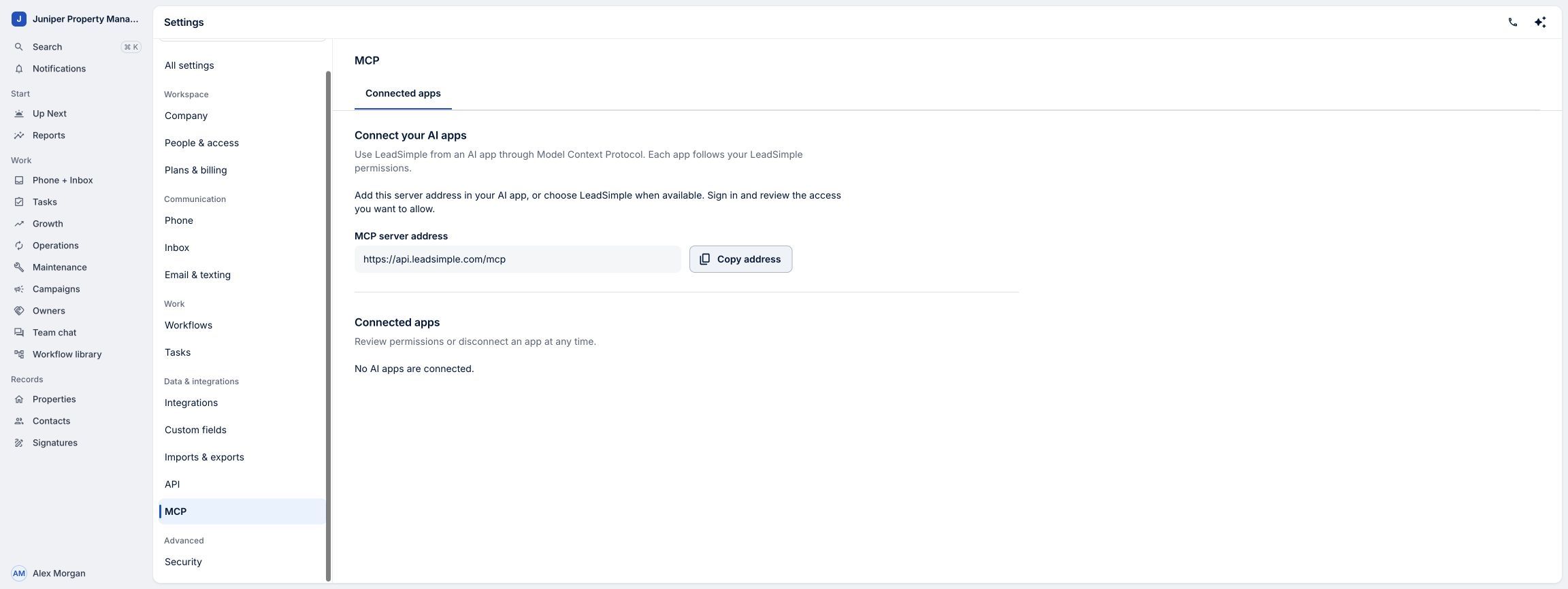
Copy the server address from the current MCP settings page. Sample data. Select the image to enlarge it. -
Connect from your AI app
Add the server address in your AI app’s custom-connector settings, then follow its sign-in flow to LeadSimple. Review the displayed account, member and permissions. Allow Tasks under readable information for this example; access to related records also depends on the relevant read permissions and your existing LeadSimple access. Optional write permissions are not needed. Your AI workspace may require administrator approval. Enter your LeadSimple password only on the LeadSimple sign-in page.
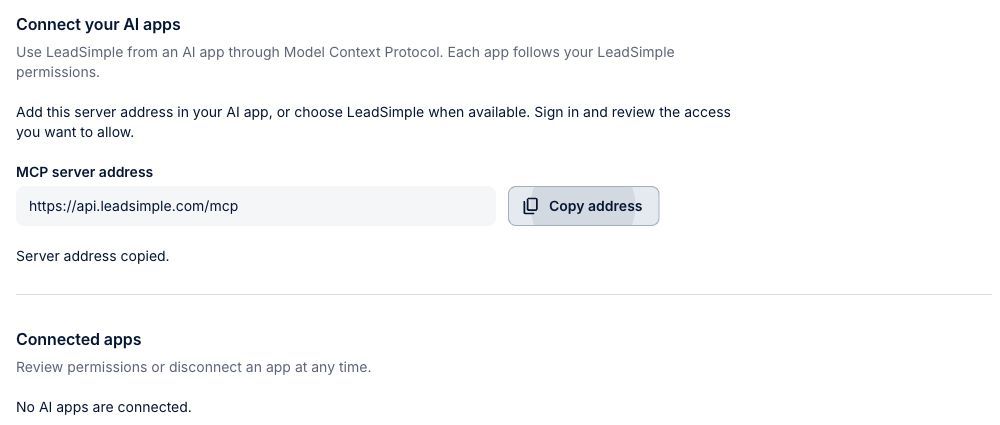
Use the copied address in a compatible AI app’s connector settings. Sample data. Select the image to enlarge it. -
Ask a useful first question
Try: “Show my open LeadSimple tasks, with links to the records.” Review the answer, then follow the returned links for the original context. Results reflect the information available to the connection; a partial result does not prove that no other work exists. Source links can open LeadSimple’s existing application rather than the One view. Communication retrieval is temporarily unavailable; this example does not use emails, texts or call content, send messages, or complete tasks.
-
Review or disconnect
Return to Settings → MCP → Connected apps to review access, remove permissions or disconnect. To grant more permissions, connect again and review the new request. Disconnecting stops future access; the AI app may retain information it already received under its own data policies. The screenshots use current product components with fictional demo data; the video illustrates the external AI exchange, rather than a completed live provider installation or a real generated answer.
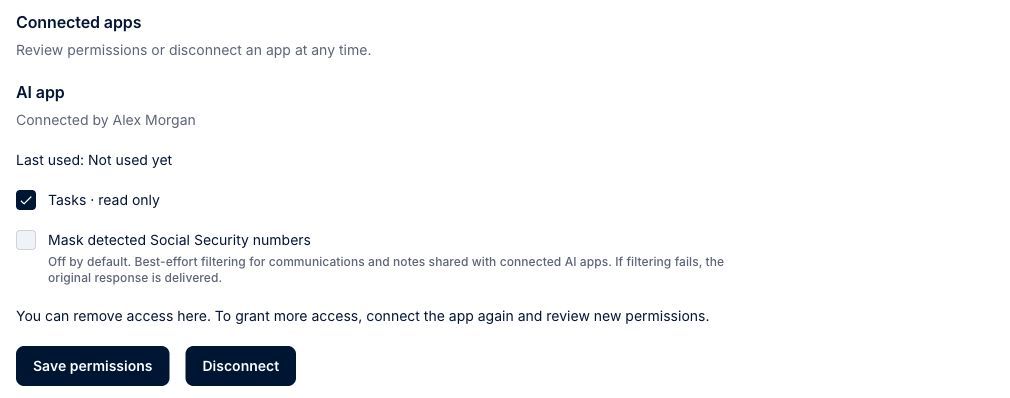
Review access and disconnect from LeadSimple when needed. Sample data. Select the image to enlarge it.
Video transcript
Already use an AI app? MCP connects it to the LeadSimple records you’re allowed to access, so you can start with context. In One, open Settings, then MCP. Copy the server address into your AI app’s connector settings. Sign in to LeadSimple and review the access you want to allow. Once connected, try: “Show my open LeadSimple tasks, with links to the records.” Review the answer, then open the source record for context. You can review permissions or disconnect in MCP settings. Bring your work into the conversation, and keep your next step clear.
Bring your work into the conversation, and keep your next step clear.
Try it in your own workspace, review the result, and bring your team along.