Coordinate a maintenance visit
LeadSimple One connects the vendor’s proposed visit windows with the office and resident, so there is a clear path from availability to a recorded visit. Screenshots show the current product components with fictional Juniper data. The video combines these close-ups with explanatory illustrations.
You’ll learn how to
- Find vendor-proposed windows on a work order.
- Understand office selection and resident selection.
- Know what happens when none of the proposed times work.
-
Start with the vendor’s availability
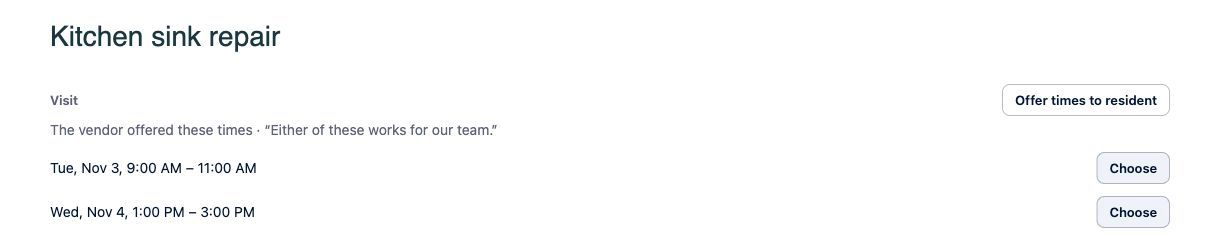
After the assigned vendor receives their secure work-order link, they can offer up to three future visit windows. The work order’s Visit section shows the proposed times. Public vendor and resident pages name the account time zone; confirm it when coordinating across locations.
Current LeadSimple One product components with fictional Juniper data. Sample data. Select the image to enlarge it. -
Choose a time, or offer times to the resident
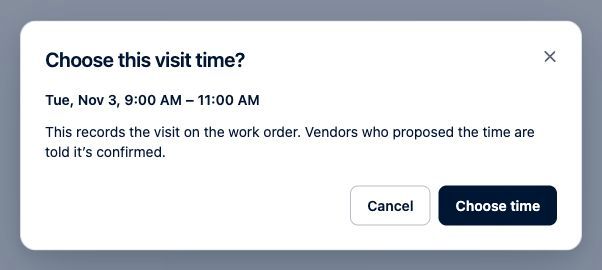
A coordinator can select Choose beside a proposed window, review the confirmation, then select Choose time. This records the visit on the work order and queues a confirmation to the vendor who proposed it. Alternatively, Offer times to resident lets the office enter its own windows and send the resident a selection link. That route requires a linked resident and an eligible request.
Current LeadSimple One product components with fictional Juniper data. Sample data. Select the image to enlarge it. -
Let the resident choose when appropriate
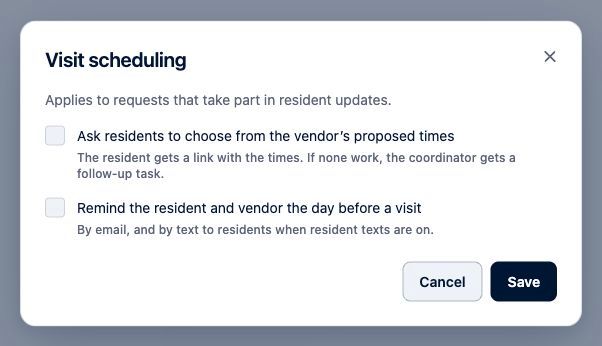
An administrator can enable Ask residents to choose from the vendor’s proposed times under Visit scheduling in Maintenance configuration or Maintenance settings. The resident can select a time or explain why none work. A decline leaves the visit unscheduled and creates a coordinator follow-up task. Automatic forwarding is off by default.
Current LeadSimple One product components with fictional Juniper data. Sample data. Select the image to enlarge it. -
Use reminders deliberately
Day-before reminders are a separate opt-in setting. They go to the resident and vendor by email, and to the resident by text when resident texting is enabled and permitted. Migrated workflows must be opted into resident messaging; historical imports do not trigger a wave of messages. Changing vendors, replacing proposals, closing a request, or changing its schedule can invalidate earlier selection links.
Video transcript
A repair moves faster when the vendor, resident, and office agree on a time. In LeadSimple One, the assigned vendor can offer up to three visit windows from their work order link. Your coordinator can choose a proposed time, or offer times to the resident. With resident selection enabled, vendor proposals go to the resident automatically. They choose a time, or explain why none work. The selected visit is recorded on the work order. If no time works, the coordinator gets a follow-up task. Day-before reminders are optional. Less back-and-forth. A clearer plan for everyone.
Less back-and-forth. A clearer plan for everyone.
Try it in your own workspace, review the result, and bring your team along.