A good starting point. A workflow that fits you.
LeadSimple One comes with preinstalled workflows built around property management best practices. They give your team a consistent starting point for everyday operations, helping you improve service quality and support owner retention. In this lesson, you’ll adjust the repair follow-up in a Maintenance coordination workflow using the AI assistant.
You’ll learn how to
- Find a built-in workflow
- Ask AI for a specific adjustment
- Review, apply, and verify the change
-
Find your starting point
Open Workflow library from the left navigation. Under Operations, select Maintenance coordination, then choose the Steps tab. Find Follow up on the repair. In this example, it starts at 1 day after previous.
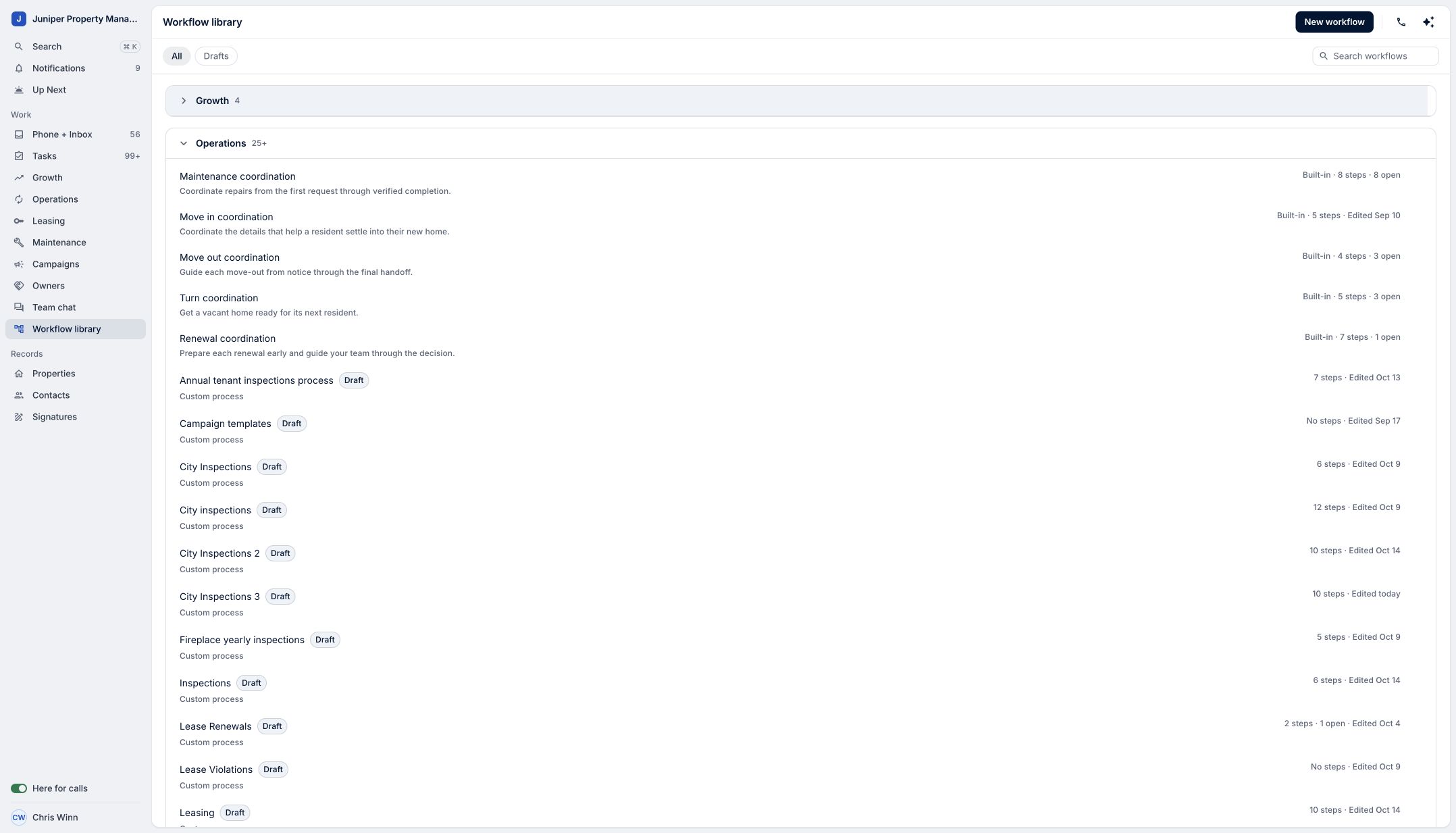
Choose Maintenance coordination from the Workflow library, then open Steps. Sample data. Select the image to enlarge it. -
Describe the change you want
Open the AI assistant using the sparkle control at the top right. Be specific about the step, the new timing, and what should stay the same. Try: In this maintenance workflow, change ‘Follow up on the repair’ to be due 2 days after the previous step instead of 1 day. Keep everything else the same.
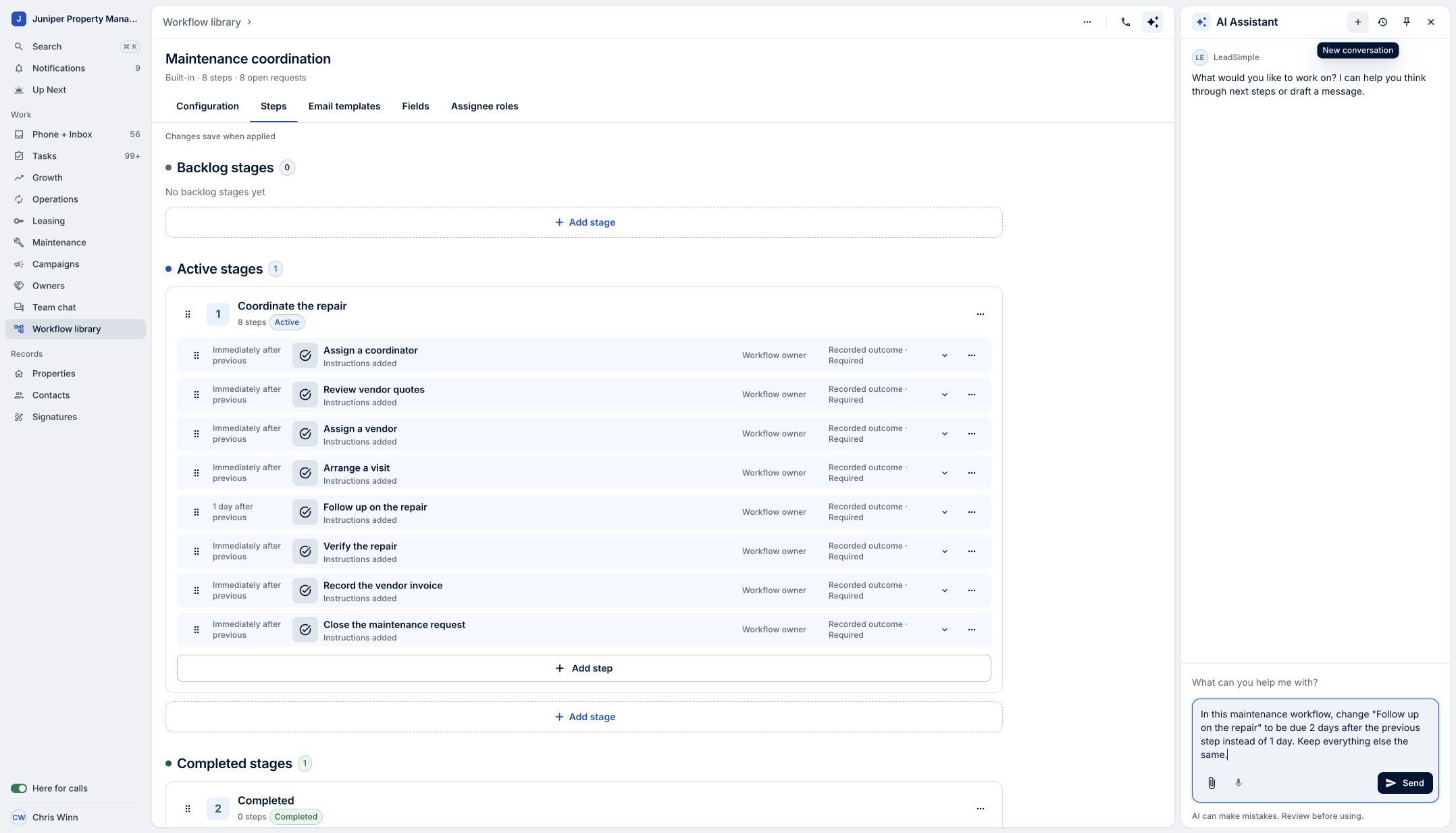
Name the step and the exact adjustment so the assistant has a clear instruction. Sample data. Select the image to enlarge it. -
Review before you apply
Read the proposed change and its impact on existing work. The assistant has prepared an update, but it has not saved it yet. Once the change matches your intent, select Apply workflow changes. The impact counts shown here belong to this demo account; your account’s counts will differ.
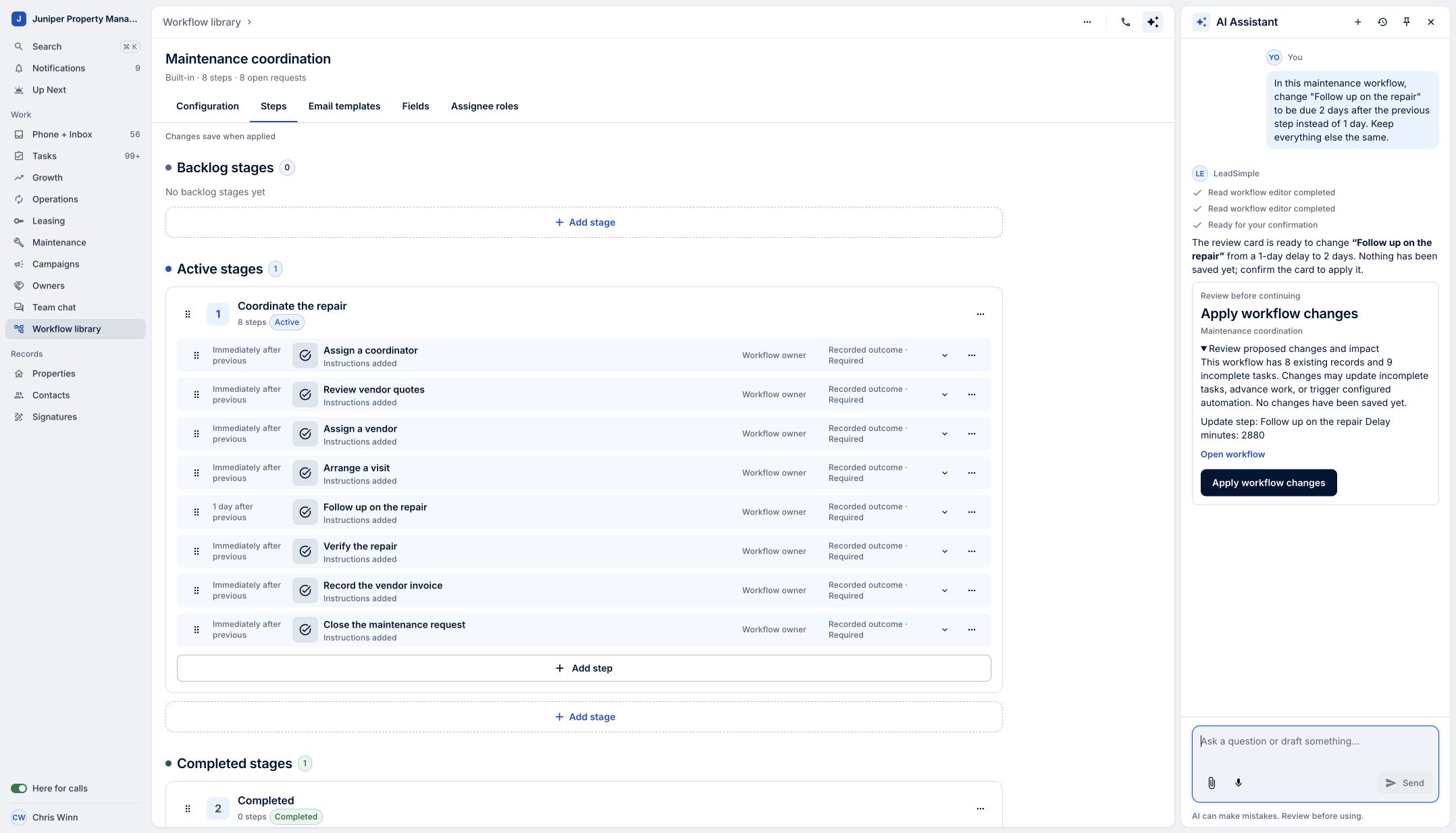
Check the proposed update and the work it affects before applying it. Sample data. Select the image to enlarge it. -
Check the saved result
Look for the saved confirmation, then check Follow up on the repair in the workflow. It now shows 2 days after previous. You have adapted the timing to your team’s process while keeping the rest of the workflow in place.
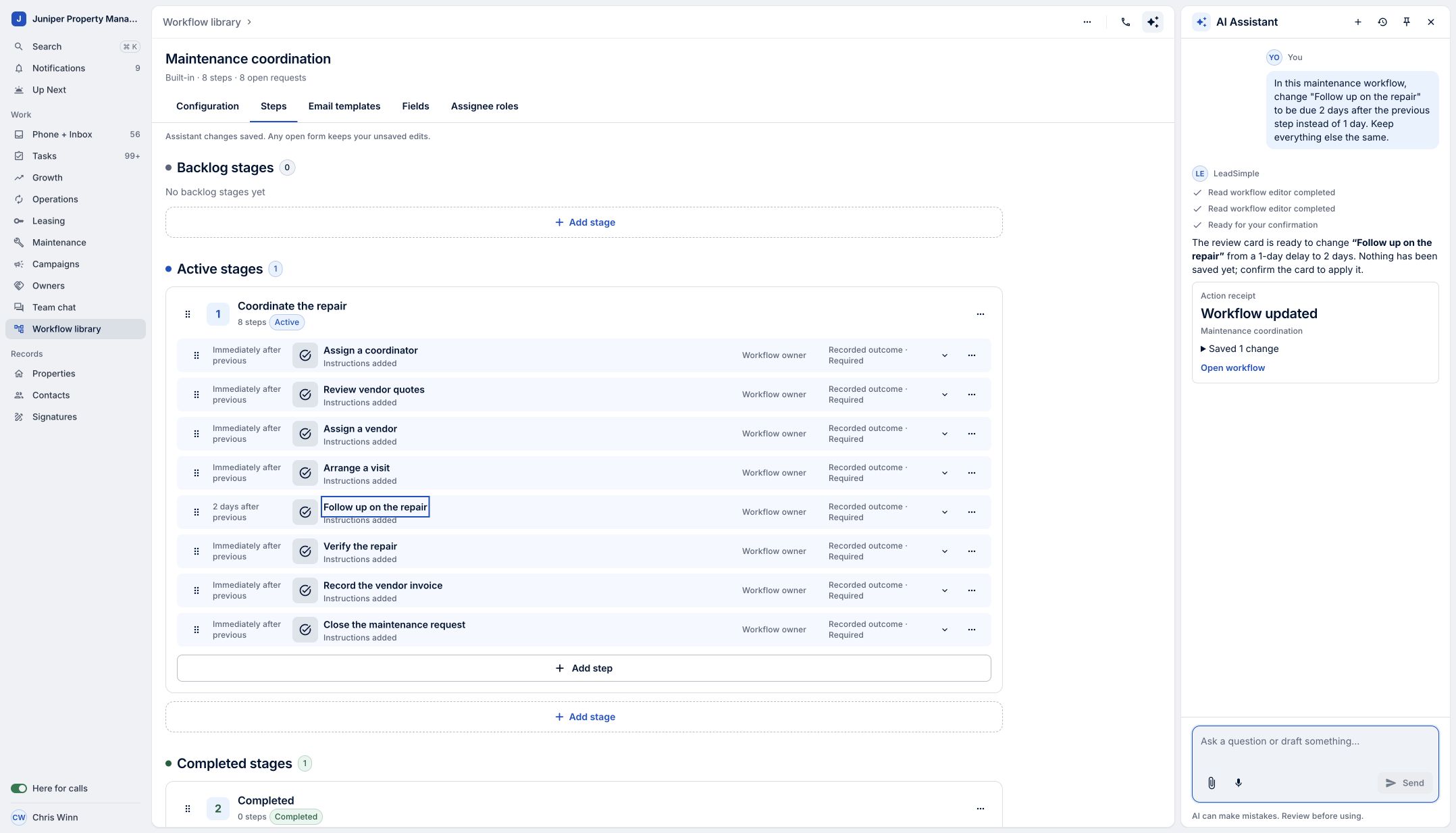
Verify both the saved confirmation and the new timing in the workflow. Sample data. Select the image to enlarge it.
Video transcript
LeadSimple One comes with preinstalled workflows built around property management best practices, to help standardize operations, improve service quality, and support owner retention. Open the Workflow library, choose Maintenance coordination, and go to Steps. Open the AI assistant and ask it to move the repair follow-up from one day to two days after the previous step. Review the proposed change and its impact, then select Apply workflow changes. The workflow now shows the updated timing. Start with best practices, then make them your own.
Start with best practices, then make them your own.
Try it in your own workspace, review the result, and bring your team along.