Find operational work that needs attention
A clear next step helps a busy team keep work moving. Operations brings work items, next actions, responsible people, and target dates together so you can find an issue and open the context behind it.
You’ll learn how to
- Find work with missed targets or overdue tasks.
- Filter Operations by a work type such as Turns.
- Inspect the next step, responsible person, and task instructions.
-
Open Operations
Choose Operations in the sidebar. The Work view brings active work into a list with its next action, stage, responsible person, and target date. Start here to understand what is moving across your team.
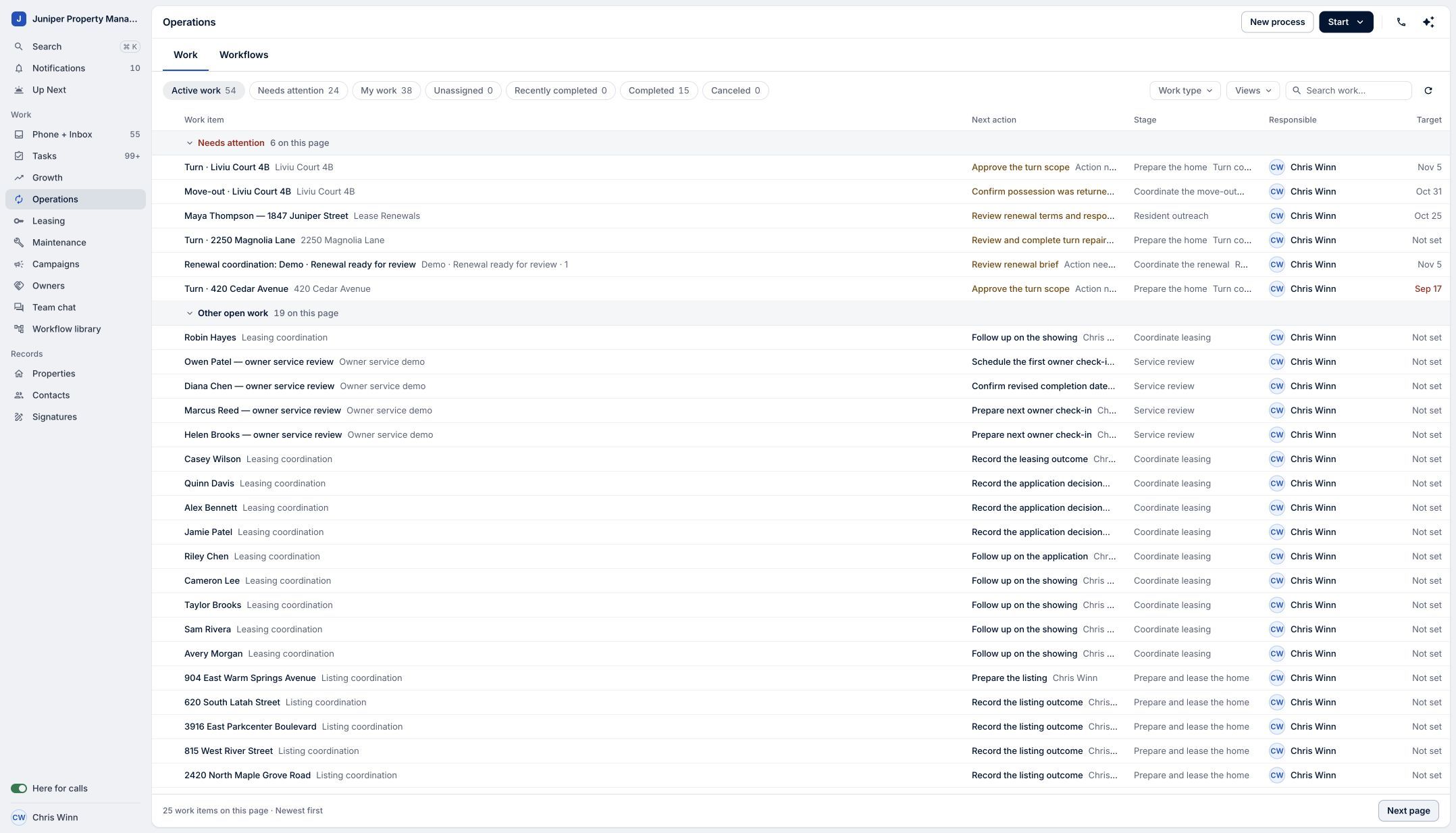
Begin with an overview of the work. Sample data. Select the image to enlarge it. -
Choose Needs attention
Select Needs attention to find missed target dates and unfinished tasks due before today. Tasks due today stay in today's work. Use this view to decide what needs closer inspection.
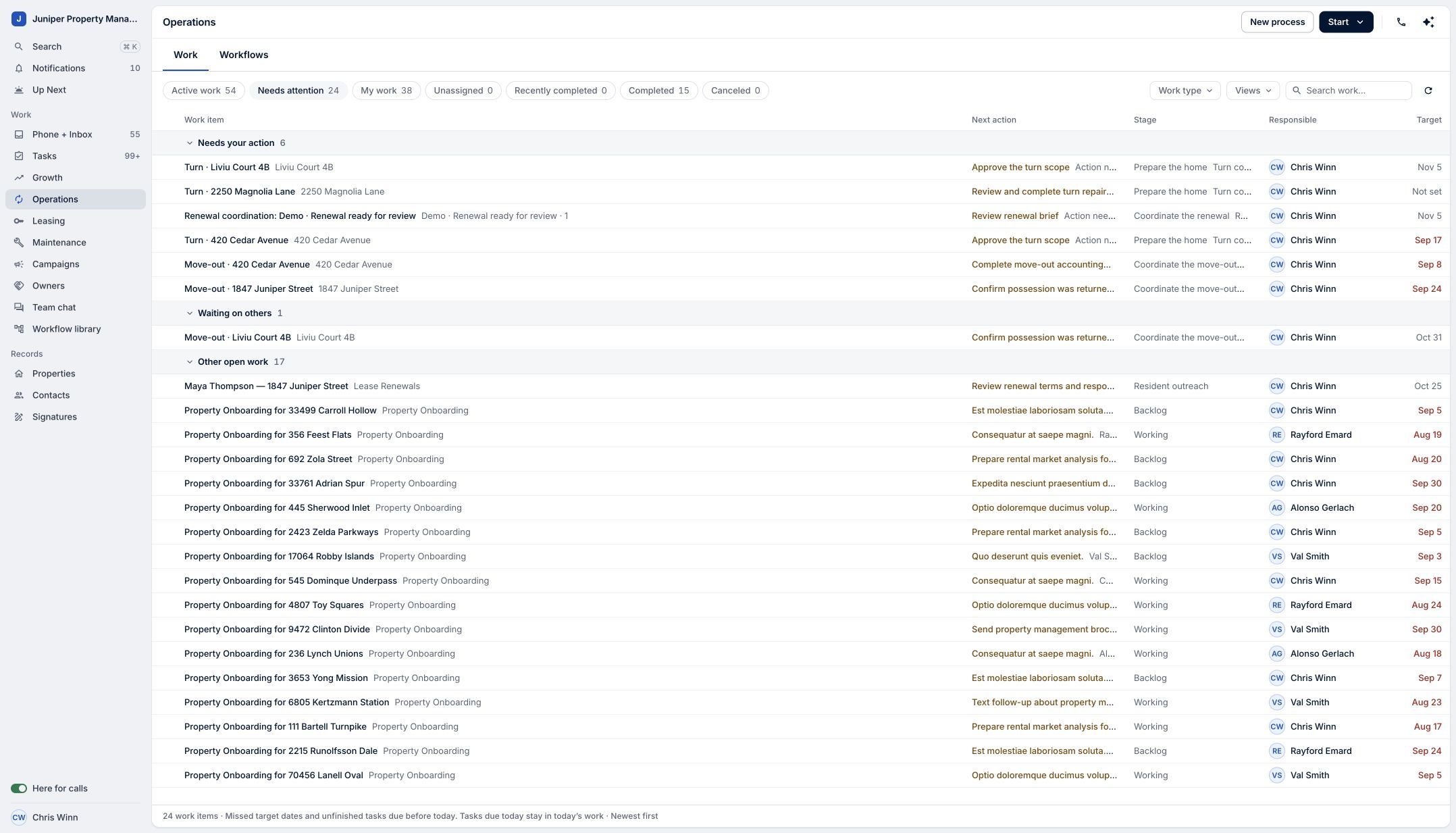
Find missed targets and unfinished tasks due before today. Sample data. Select the image to enlarge it. -
Narrow the list by work type
Open Work type and choose Turns. The list now focuses on turn work, making it easier to find the property you want to inspect. You can use the same control for other available work types.
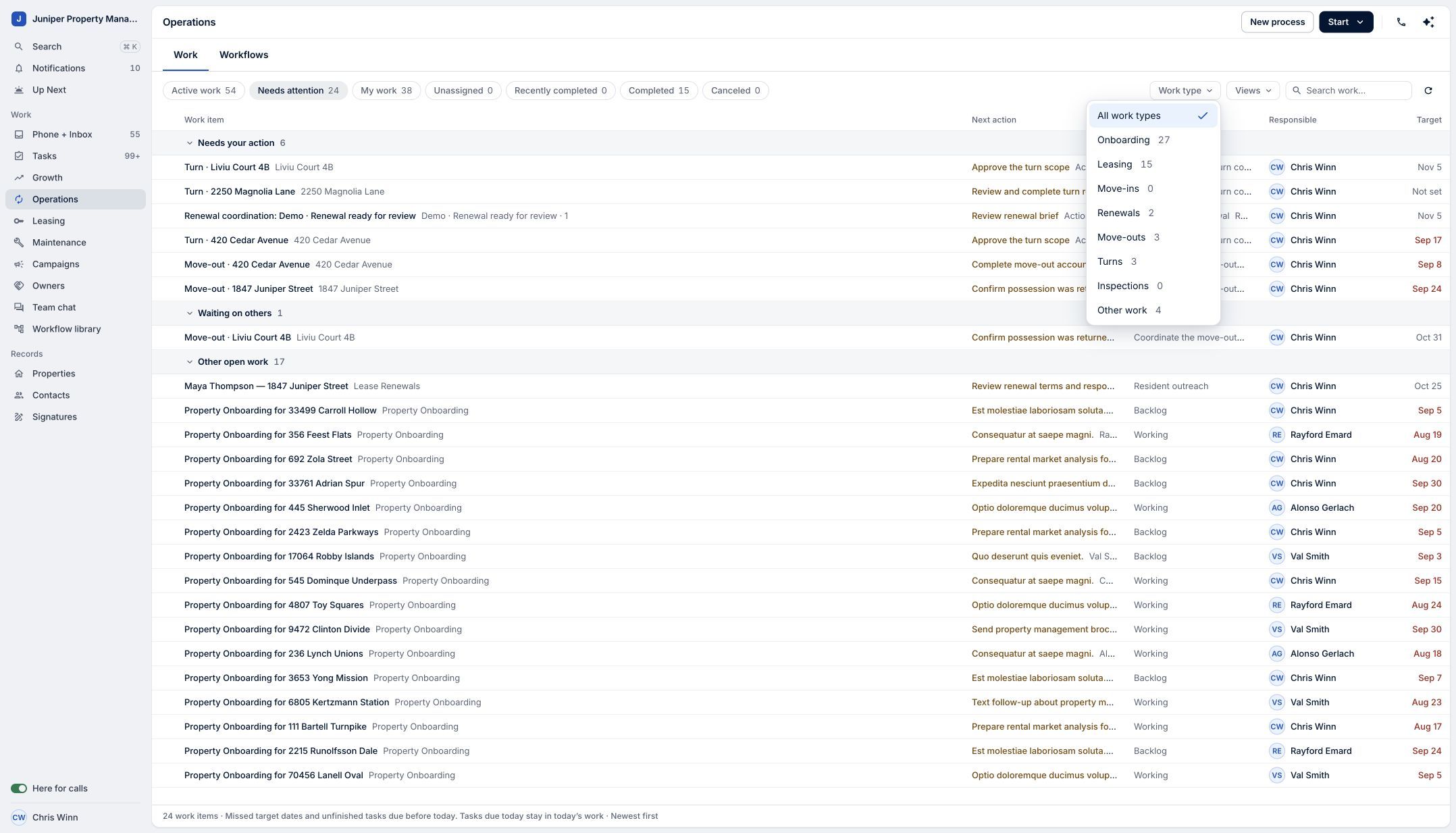
Choose the kind of work you want to review. Sample data. Select the image to enlarge it. -
Open a work item
Open Turn · Liviu Court 4B in this demo. The record brings the next step, scope of work, progress, and related work together. Review who is responsible and the target ready date before deciding what to do.
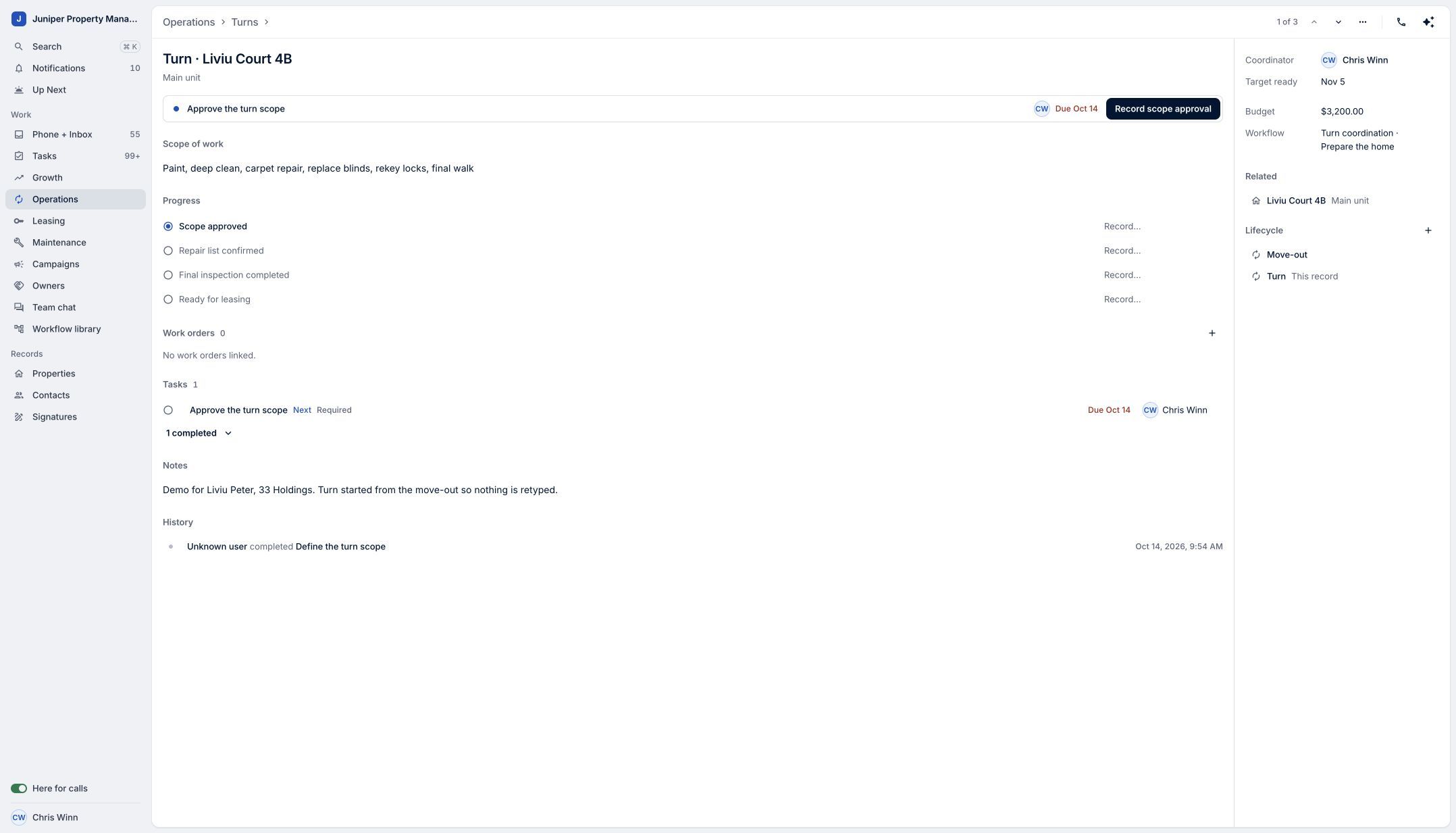
See the next step in the context of the whole turn. Sample data. Select the image to enlarge it. -
Read the task before acting
Open Approve the turn scope in the Tasks section. The task drawer shows the instructions, assignee, due date, and related workflow. This example is a workflow-managed step: its status changes when its result is recorded in the workflow. Reviewing the task does not approve the scope.
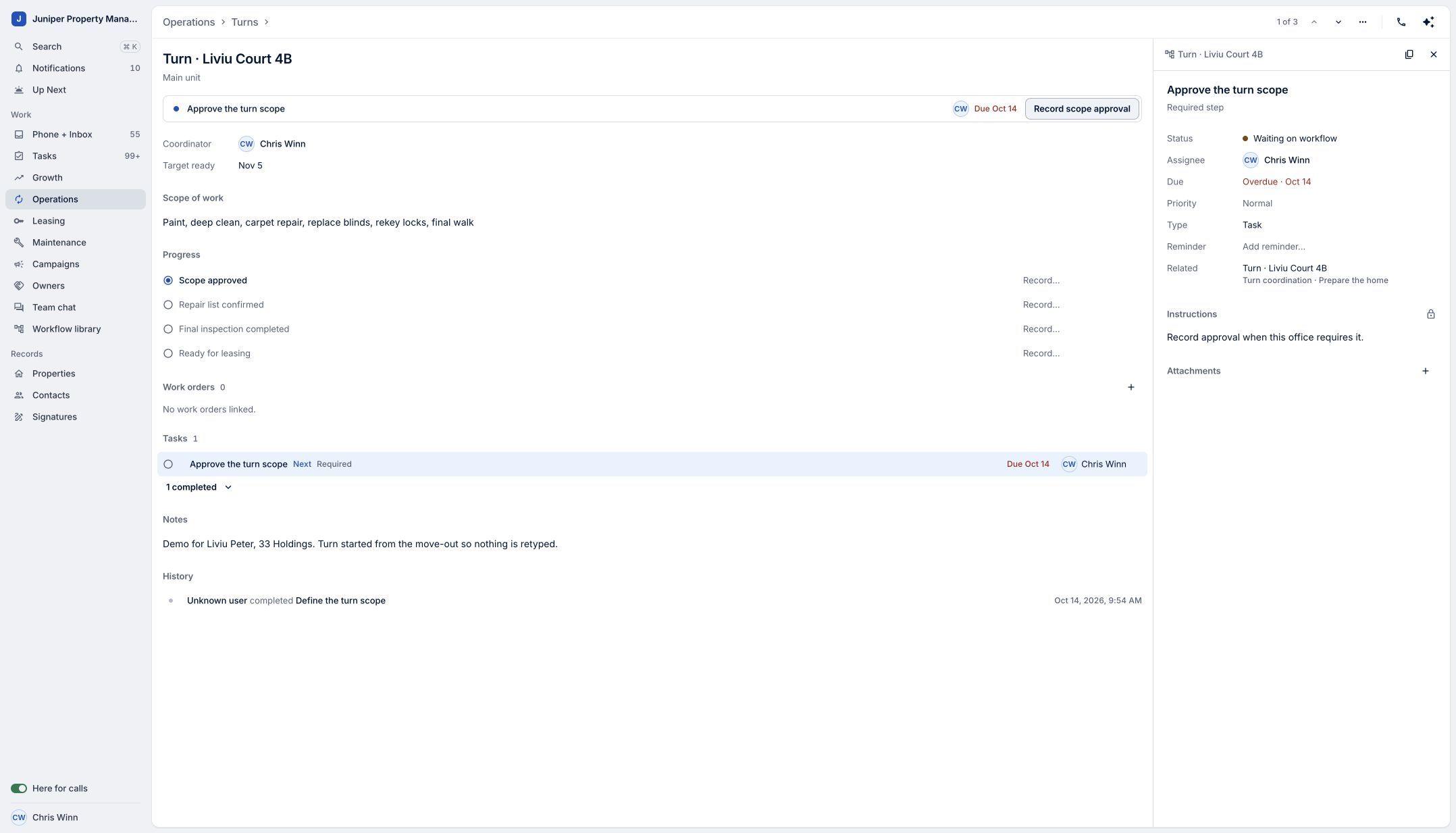
Understand the required action before recording its result. Sample data. Select the image to enlarge it.
Video transcript
Busy teams need to know where work is getting stuck. In LeadSimple One, Operations brings the next action, responsible person, and target date into one view. Open Needs attention to find missed targets and unfinished tasks due before today. Use Work type to focus on Turns, then open a property. Here, the next step is to approve the turn scope. Review the scope and responsible person, with progress and related work alongside. Open the task for its instructions and due date before taking action. See what needs you, understand the next step, and keep work moving.
See what needs you, understand the next step, and keep work moving.
Try it in your own workspace, review the result, and bring your team along.