Get the right vendor moving
A clear vendor handoff helps your team move a repair forward without losing its context. Vendor rules can surface preferred vendors, while Send to vendor gives your coordinator a separate review step before sharing the work. Screenshots show the current product components with fictional Juniper data. The video combines these close-ups with explanatory illustrations.
You’ll learn how to
- Find suggested vendors on an unassigned work order.
- Review the recipient and channel before sending a secure work order link.
- Understand which updates are optional.
-
Set up useful vendor suggestions
An administrator opens Maintenance configuration from the Maintenance list, then Vendor rules in the workflow’s Configuration tab. Accounts that keep their own maintenance workflow use the Maintenance settings control instead. Add description keywords or a synced trade, then list preferred vendors in order. Suggest vendors on the work order is the default behavior.

Current LeadSimple One product components with fictional Juniper data. Sample data. Select the image to enlarge it. -
Assign the vendor for this repair
Open the work order in Maintenance. An unassigned request shows vendors suggested by matching rules. Use Assign for the vendor you want. Assignment records who will handle the job; it does not itself send the work order.

Current LeadSimple One product components with fictional Juniper data. Sample data. Select the image to enlarge it. -
Review and send the work order
Use Send to vendor from the next action or work-order menu. Choose an available channel, then Review message. Check the recipient, message, and shared files before selecting Send. The vendor receives a secure work-order link. Check Sending results; accepted for sending is not proof of delivery. If a result is unconfirmed, check Activity before starting another review.
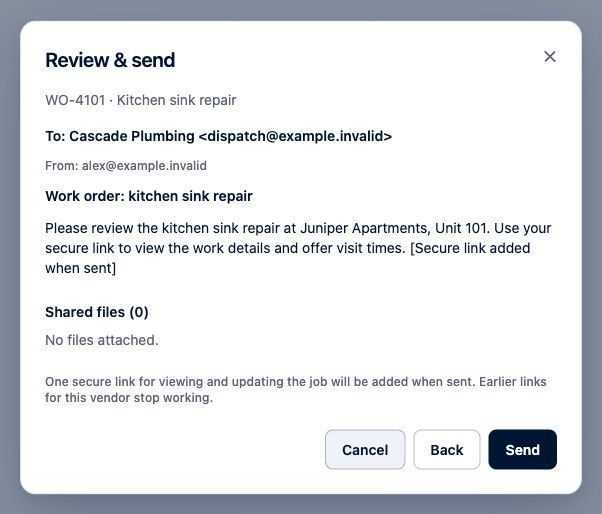
Current LeadSimple One product components with fictional Juniper data. Sample data. Select the image to enlarge it. -
Keep everyone informed
The work order’s Messages section contains linked emails, texts, and calls you are allowed to see. Administrators can opt into resident updates for selected changes, such as vendor assignment or a scheduled visit. Text availability depends on the saved number, sender line, consent, and opt-out status. Automatic vendor assignment or dispatch is a separate opt-in choice for new native One requests; synced and migrated-workflow requests receive suggestions only.
Video transcript
Keep repairs moving with a clear handoff to the right vendor in LeadSimple One. Vendor rules match repair details to your preferred vendors. Suggestions leave the choice with your team. Suggestions give your coordinator a starting point. Assignment and sending are separate steps. Use Send to vendor, choose an available channel, and review the message before sending the secure work order link. The work order keeps linked messages with the repair. Optional resident updates help keep everyone informed as work progresses. Give every repair a clear handoff, and keep your team in the loop.
Give every repair a clear handoff, and keep your team in the loop.
Try it in your own workspace, review the result, and bring your team along.