Give maintenance intake a clear next step
AI can organize maintenance conversations so your team can focus on the next decision. This lesson follows text-message intake and a separate emergency acknowledgement example. Front-door options require a One plan, maintenance access, and an administrator’s opt-in settings. Screenshots show the current product components with fictional Juniper data. The video combines these close-ups with explanatory illustrations.
You’ll learn how to
- Review an intake summary and missing information.
- Choose whether to create a request or dismiss intake with a reason.
- Understand what emergency acknowledgement does—and what it does not do.
-
Review intake that needs a person
From Maintenance, open the intake queue. Needs review shows the summary, urgency, category, missing information, and available conversation or photo context. Use Open conversation to check the source details. AI classification is a starting point for your team’s review, not a guarantee that an issue is understood.
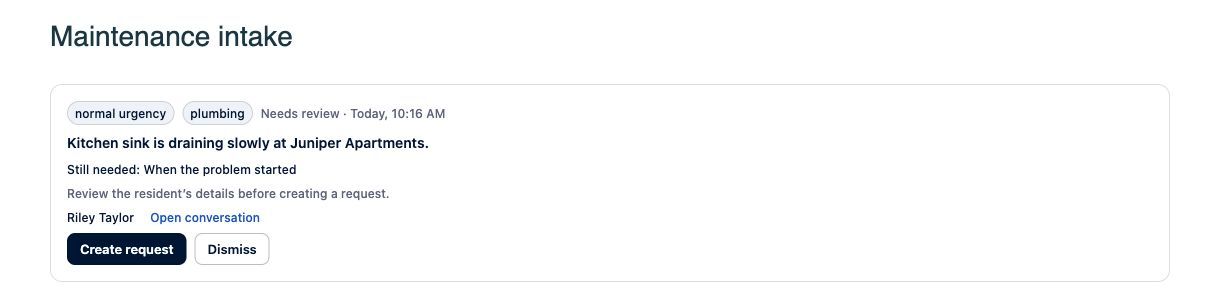
Current LeadSimple One product components with fictional Juniper data. Sample data. Select the image to enlarge it. -
Create the right request
Select Create request to review the property, unit when available, description, and priority. Correct the details before creating it. Requests use the account’s existing maintenance creation path. If the intake should not become a request, choose Dismiss and record a reason.
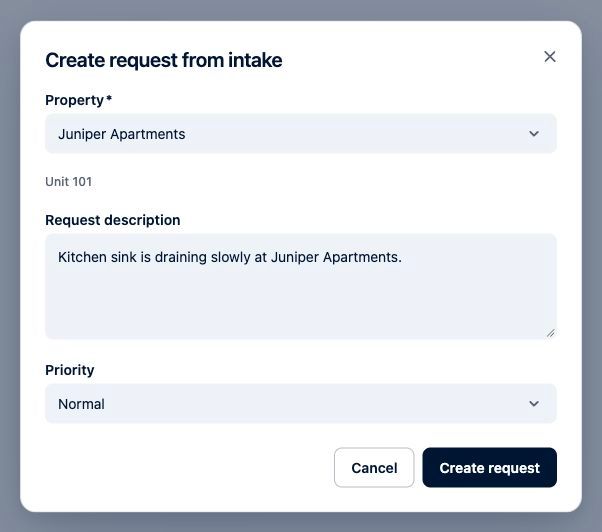
Current LeadSimple One product components with fictional Juniper data. Sample data. Select the image to enlarge it. -
Acknowledge an emergency handoff
When emergency escalation is enabled, emergency intake can notify the configured on-call team and page them in order. Review the emergency notice and select Acknowledge when taking responsibility for that handoff. The acknowledgement records who responded and stops further paging. It does not verify the repair, close the request, or replace your team’s emergency procedures.

Current LeadSimple One product components with fictional Juniper data. Sample data. Select the image to enlarge it. -
Set expectations with optional policies
An administrator configures Resident intake & emergencies on the Maintenance workflow’s Configuration tab. After-hours replies tell residents with non-emergency SMS or web requests to expect follow-up on the next business day. Guided SMS troubleshooting is limited to vetted low-risk steps and is not used for emergency-like reports. Web-form triage is another opt-in option. A resident selecting Emergency on a public form does not itself send an SMS page; it creates an in-app notification, with classifier-confirmed paging governed by separate settings and limits.
Video transcript
Give resident requests a clear next step with AI maintenance intake in LeadSimple One. Text conversations can surface a summary, urgency, and missing details for your team to review. In the intake queue, review the context before creating a request. If it shouldn’t become a request, dismiss it with a reason. When emergency escalation is enabled, emergency intake can page your on-call team. Acknowledging records who responded and stops further paging. It doesn’t close the repair. Optional after-hours replies set expectations, while guided troubleshooting is reserved for low-risk issues. Let AI organize the details. Keep your team in control.
Let AI organize the details. Keep your team in control.
Try it in your own workspace, review the result, and bring your team along.