Keep repair costs aligned with owners
Approval limits give coordinators a visible checkpoint when a repair exceeds the property or account limit. The owner gets the quote context, and the work order keeps the decision separate from the request for that decision. Screenshots show the current product components with fictional Juniper data. The video combines these close-ups with explanatory illustrations.
You’ll learn how to
- Understand property limits and account-wide amounts.
- Recognize when a repair needs owner approval.
- Review an owner request before sending it.
-
Choose the approval policy
An administrator opens Approval limits in Maintenance configuration or Maintenance settings. Use each property’s synced maintenance limit, optionally with a fallback for properties without one, or set one amount for the account. Approval limits are off by default. The example uses a $500 property limit; it is not a universal recommendation.
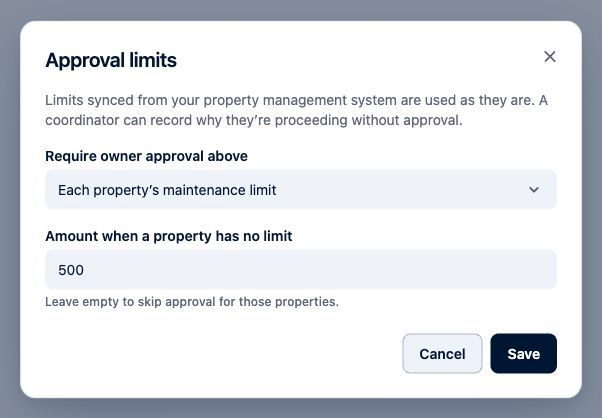
Current LeadSimple One product components with fictional Juniper data. Sample data. Select the image to enlarge it. -
Review the cost and notice
The cost is the selected quote amount, or the estimate when no quote is selected. When it is above the enabled limit, the work order shows Owner approval needed. If the property has a synced home-warranty flag, the notice also prompts you to check that coverage. Link an owner and record a received quote with an amount before requesting their review.

Current LeadSimple One product components with fictional Juniper data. Sample data. Select the image to enlarge it. -
Send a reviewed request to the owner
Select Request owner review, then Review message. Check the owner, message, included quotes, and shared files before selecting Send. The secure review link lets the owner respond. Sending this request changes the waiting state; it does not record owner approval.
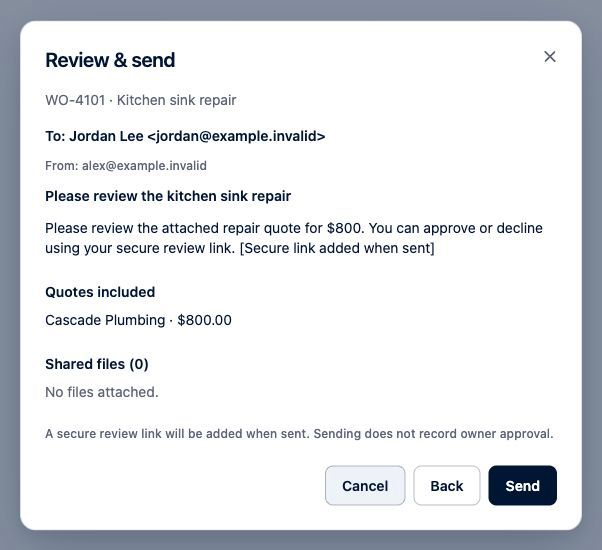
Current LeadSimple One product components with fictional Juniper data. Sample data. Select the image to enlarge it. -
Wait for the decision before dispatch
Send to vendor is blocked while approval is needed, requested, or declined. A coordinator with the appropriate work-order access can use Proceed without approval and record a reason; the amount, user, and reason are kept in Activity. An override covers only the recorded cost. A higher cost or a changed quote can require review again. These controls do not undo a work order already sent to a vendor, and they do not block assigning a vendor.
Video transcript
Keep owners involved in repair decisions with approval limits in LeadSimple One. Your administrator can use each property’s maintenance limit, or set one amount for the account. When a repair’s cost exceeds that limit, the work order explains why owner approval is needed. Request owner review, check the quote and message, then send the owner their secure review link. Sending the request is not approval. Vendor dispatch waits for approval, or a coordinator’s recorded reason to proceed. If the cost rises beyond that decision, it needs review again. Clear limits. Informed owners. A confident next step.
Clear limits. Informed owners. A confident next step.
Try it in your own workspace, review the result, and bring your team along.