Share an inbox with your team
A shared inbox gives your team a common view of incoming requests. In LeadSimple One, the conversation sits alongside linked people, properties, and workflows, helping teammates respond with context. The video uses a simple illustration to explain shared visibility, then demonstrates a connected mailbox in the fictional Juniper account. Follow the steps below to share an existing mailbox with your team.
You’ll learn how to
- Find the people, property, and workflow linked to a request.
- Find direct access settings for a connected mailbox.
- Understand what granting access allows.
- Verify who can open a conversation.
-
See the request in context
In Phone and Inbox, open a conversation. Review the linked People, Properties, and Workflows beside it. The example renewal request is linked to 1847 Juniper Street and its renewal workflow. Select Access to see which teammates can open the conversation.
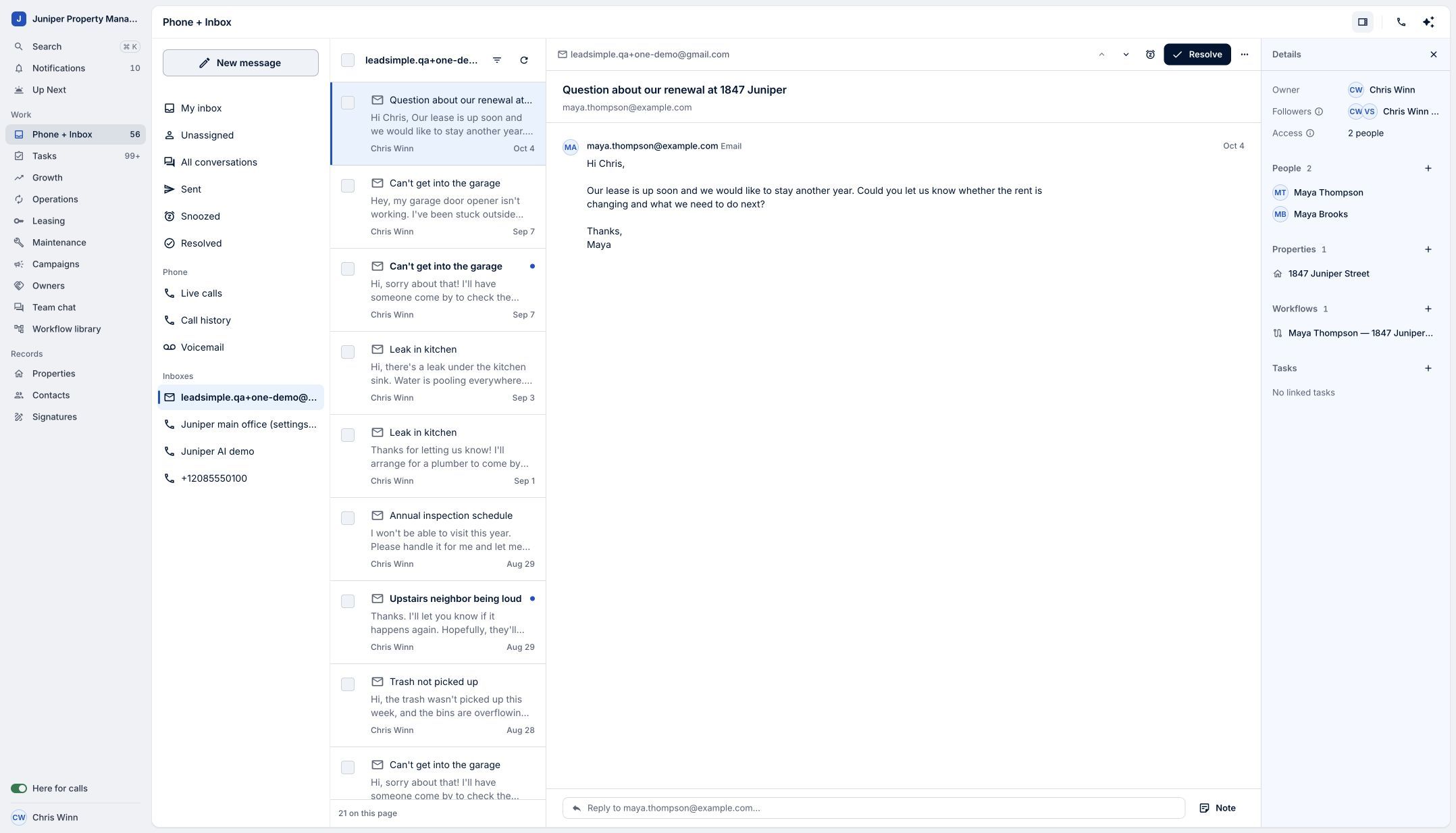
Keep the request and its context together. Sample data. Select the image to enlarge it. -
Open the connected email account
Open Settings, then Email and texting. Under Email accounts, choose the connected mailbox you want to share. Use Manage direct access to review the people who can use it. You need the relevant account permissions to change access.
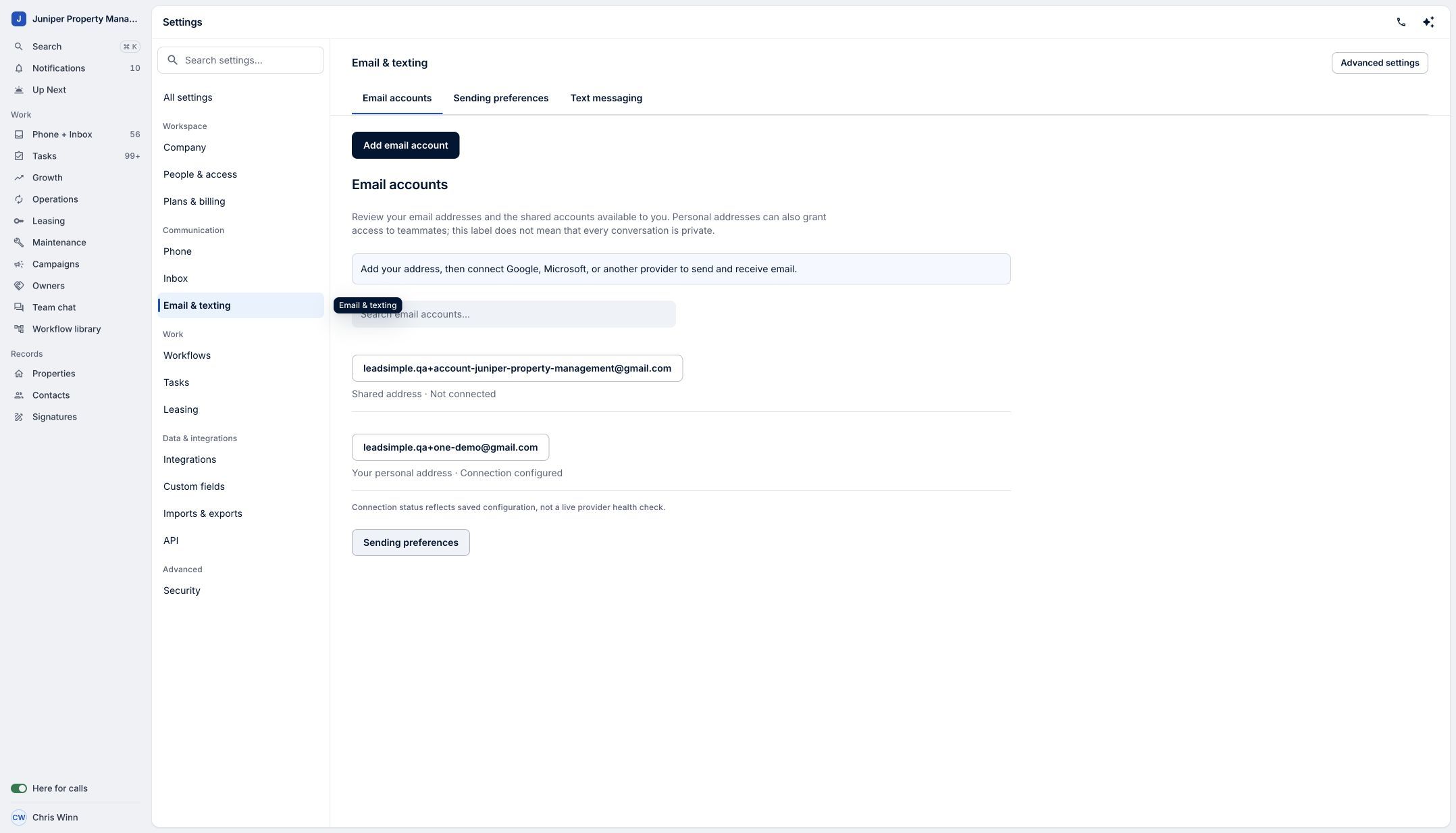
Select an already-connected email account. Sample data. Select the image to enlarge it. -
Grant your teammate direct access
Find your teammate and select Grant direct access. Review the confirmation before selecting Grant access: the teammate will be able to read existing messages and reply from this mailbox. In the demo, we grant Val Smith access.
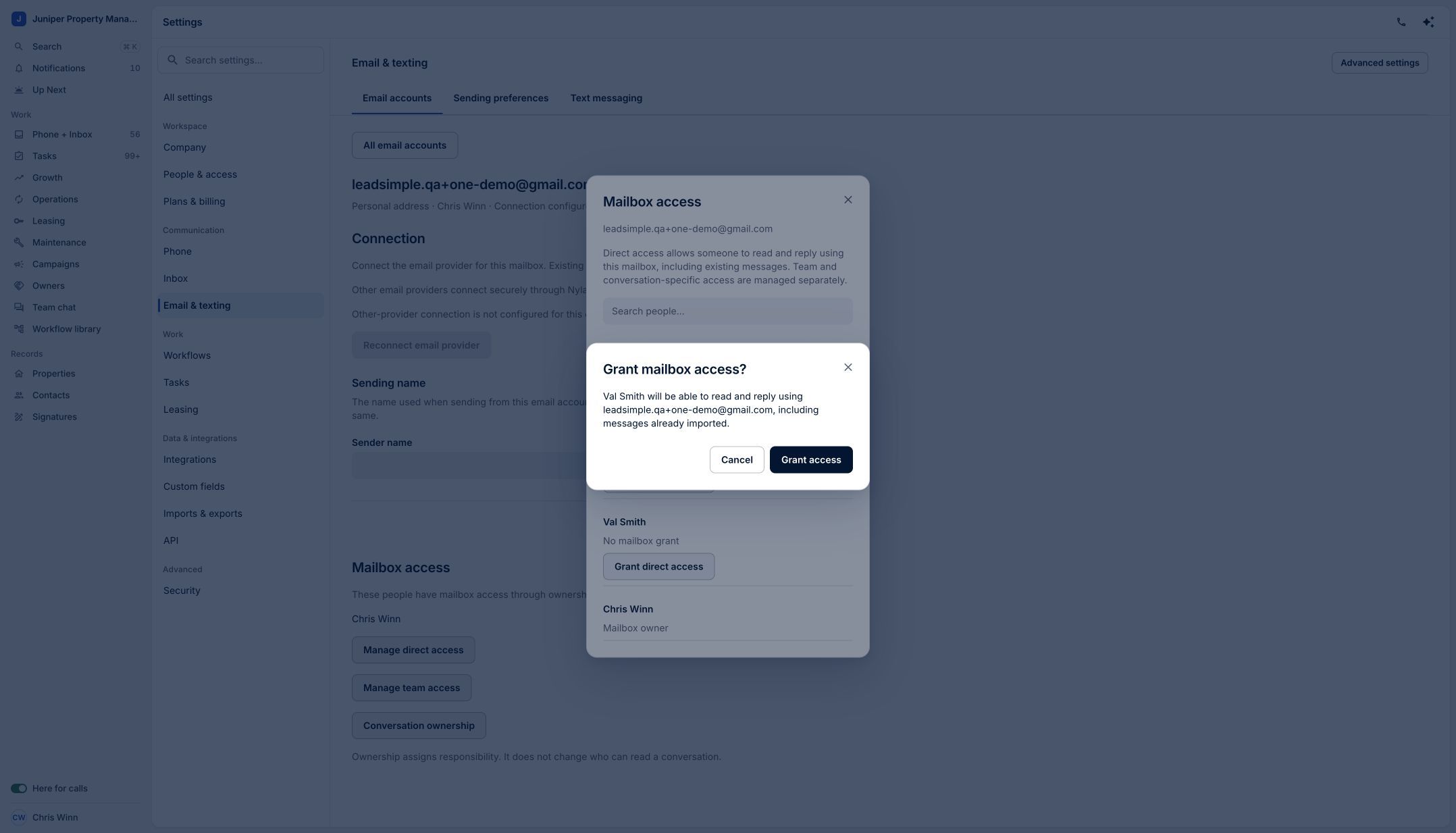
Review the scope of access before confirming. Sample data. Select the image to enlarge it. -
Confirm mailbox access
Check the saved access list. The teammate should now appear under Mailbox access. Sharing the mailbox gives access to its conversations; it does not assign ownership of every conversation.
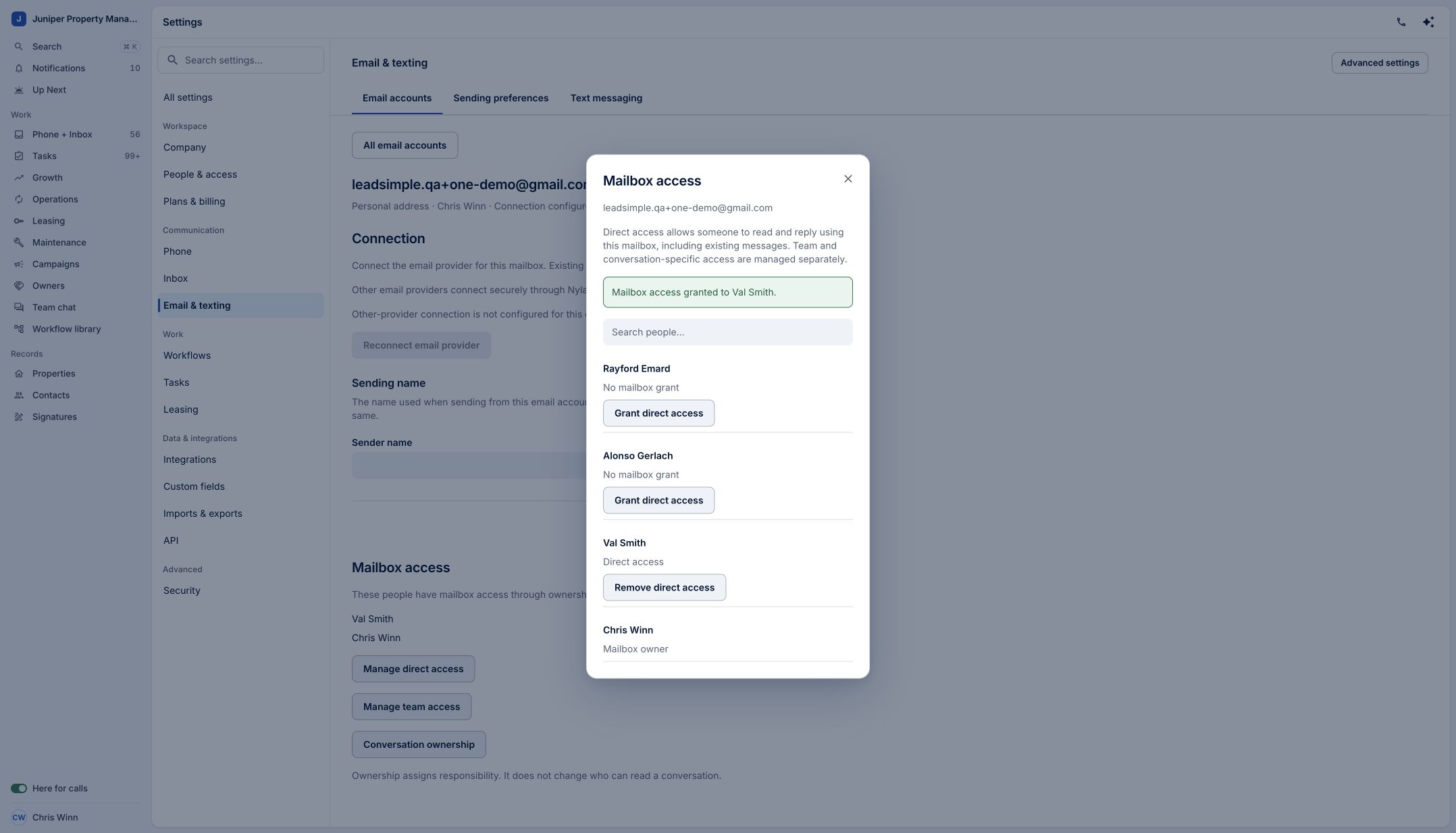
Verify the saved teammate access. Sample data. Select the image to enlarge it. -
Check a conversation’s access
Return to Phone and Inbox, open a conversation in that mailbox, and select Access. Review who can open the conversation. Assign an Owner separately when someone should be responsible for the next step.
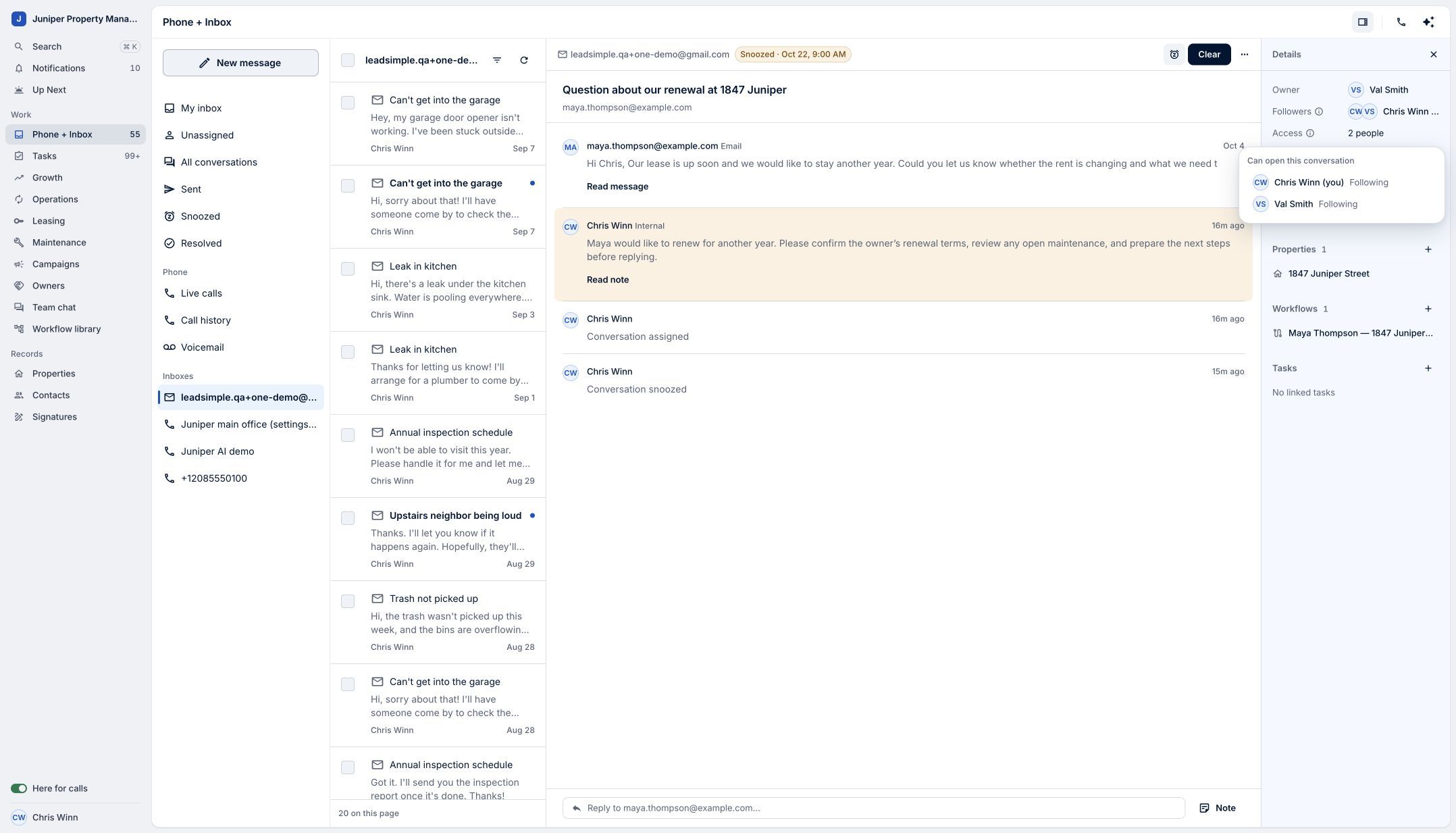
Use Access for visibility and Owner for responsibility. Sample data. Select the image to enlarge it.
Video transcript
When a request lands in one person's inbox, the rest of the team can be left guessing. A shared inbox in LeadSimple One gives everyone the same view, so your team can respond with context. Here’s a renewal request: the conversation sits beside the people, property, and workflow it belongs to. The Access menu shows which teammates can open it. To share a connected mailbox, open Email and texting settings, manage direct access, and add a teammate. They can read existing messages and reply from that address. Shared visibility, clear context, better teamwork.
Shared visibility, clear context, better teamwork.
Try it in your own workspace, review the result, and bring your team along.