Start your day with Up Next
Start with a clear view of your work. Up Next gives you a place to review your tasks and find conversations waiting on you, then move into the connected records you need to make a decision.
You’ll learn how to
- Find your tasks and conversations from Up Next.
- Open a task to review its owner, due date, and instructions.
- Follow related work to understand the full context.
-
Start in Up Next
Choose Up Next in the sidebar. My tasks shows a preview of your open work; Open my tasks takes you to the full task list. Waiting on you provides an entry point to Phone + Inbox. Your workspace may also show setup items.
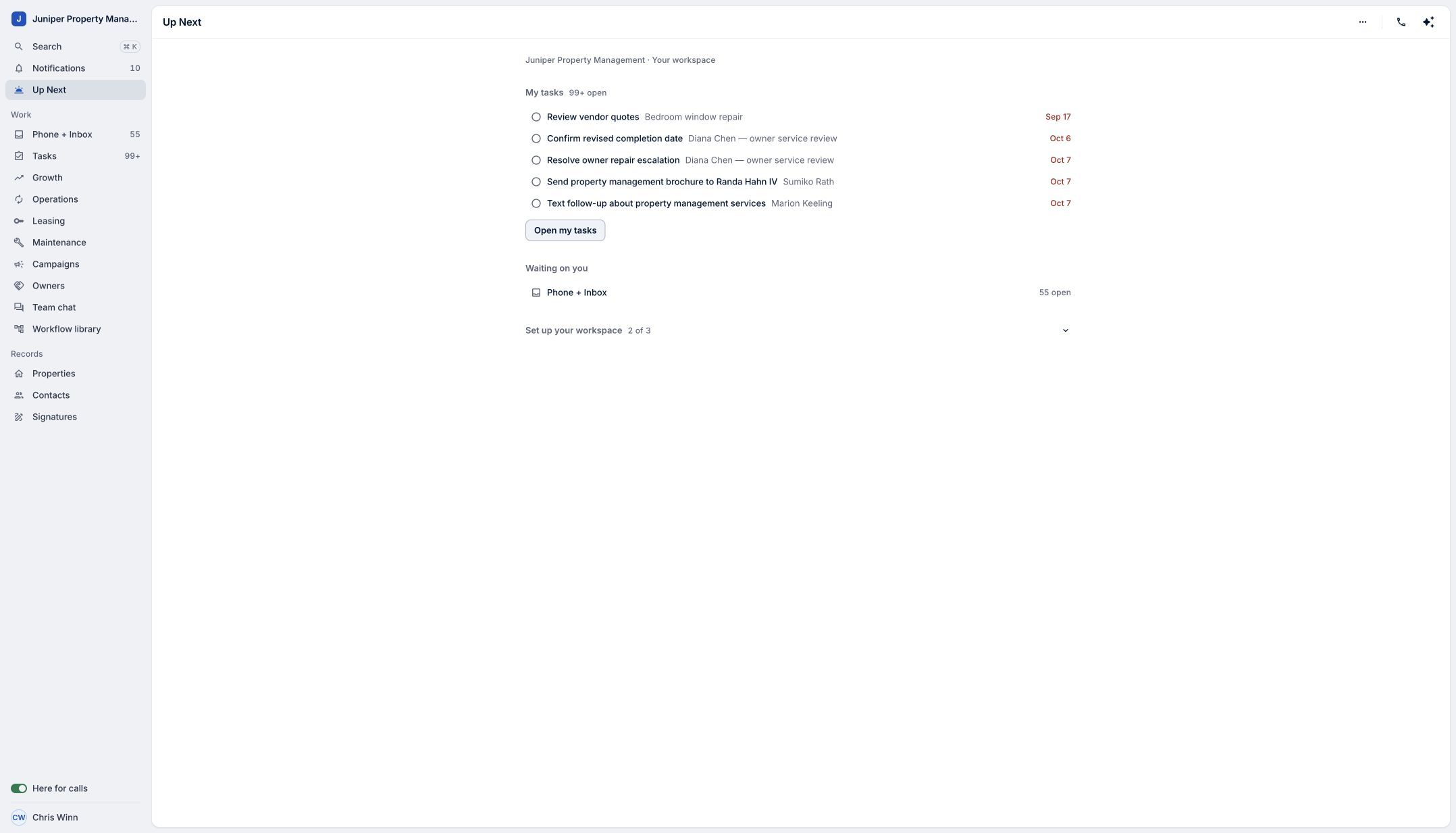
A starting point for your tasks and conversations. Sample data. Select the image to enlarge it. -
Open a task
Select Review vendor quotes in this example. The task drawer shows its assignee, due date, instructions, and related work. Read those details before taking action. The example task belongs to a work order and completes when its step is recorded there.
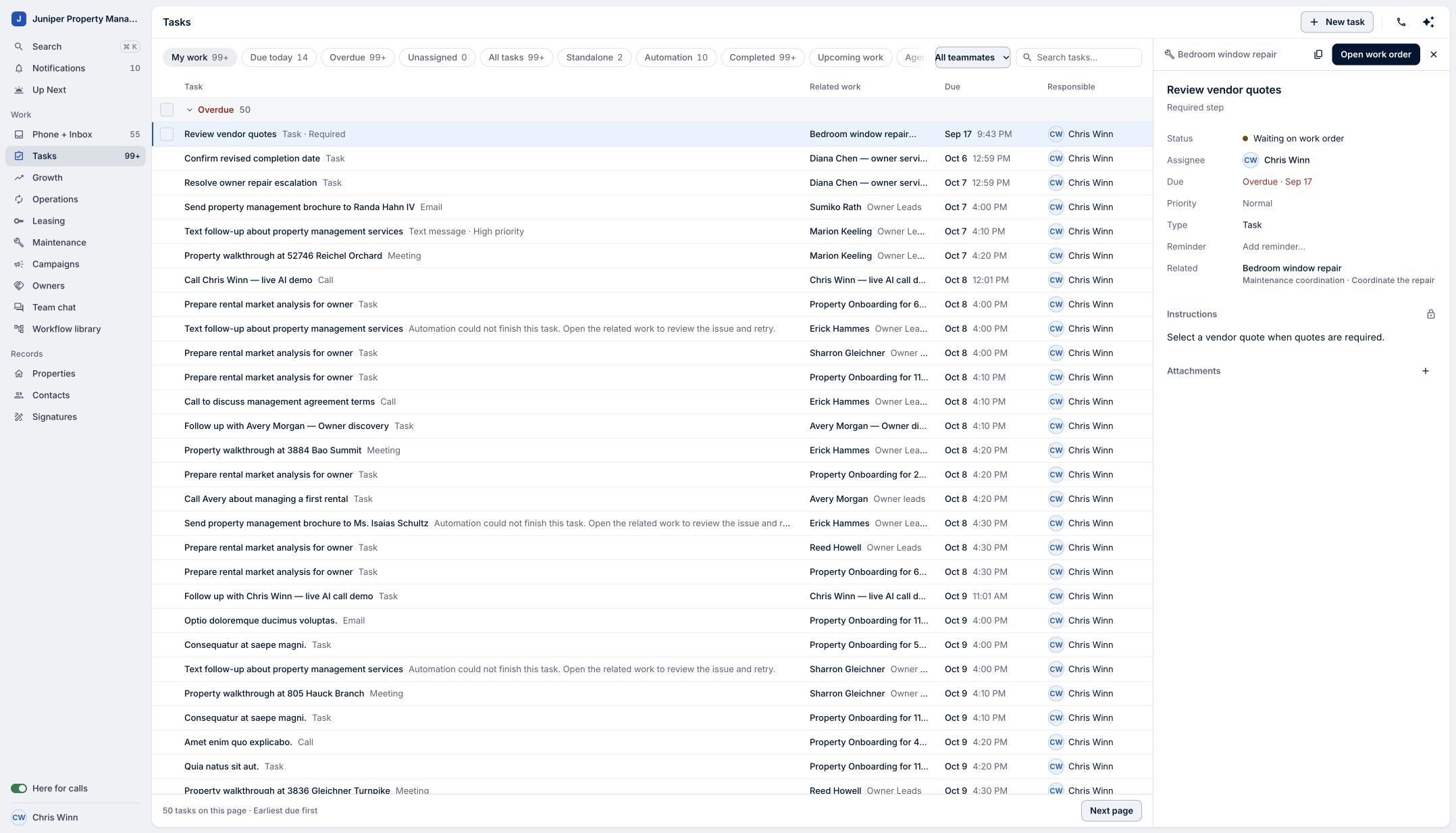
Understand who owns the task and what it needs. Sample data. Select the image to enlarge it. -
Follow the related work
Choose Open work order. The Bedroom window repair record brings the repair description, vendor quotes, tasks, and people into view. Review that context before selecting a quote or taking another action.
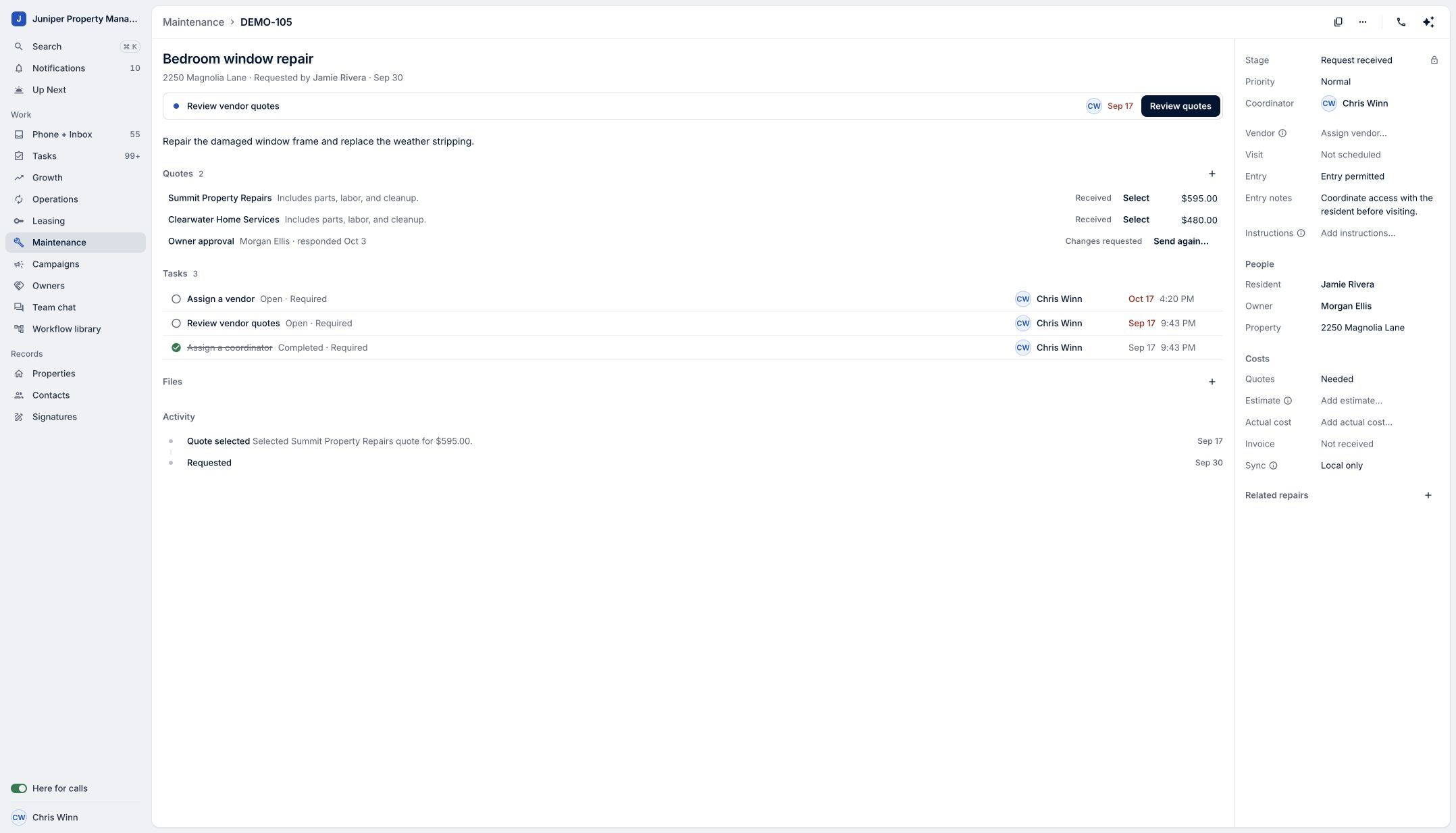
The task connects directly to the work behind it. Sample data. Select the image to enlarge it. -
Return to your starting point
Choose Up Next again when you are ready to move on. Open Phone + Inbox under Waiting on you to review conversations, or choose another task. Use the overview to orient yourself, then the related record to make an informed decision.
Return to Up Next to find the next piece of work. Sample data. Select the image to enlarge it.
Video transcript
A busy day is easier to start when you know where to look. Up Next in LeadSimple One gives you a starting point for your tasks and conversations. Review My tasks, then open Review vendor quotes. The task shows who owns it, when it's due, and what to do next. Open the related work order to see the repair, vendor quotes, and people involved. That connection helps you understand the work before making a decision. Return to Up Next to find Phone and Inbox under Waiting on you. Start with a clear view, then move into the work that needs you.
Start with a clear view, then move into the work that needs you.
Try it in your own workspace, review the result, and bring your team along.